Think about how many apps you open in a single workday. Gmail. Slack. Google Drive. HubSpot. Notion. Maybe Salesforce or Asana on top of that. Now think about what it would mean if Claude could see inside all of them at once, and take action inside them, without you copying and pasting anything.
That is exactly what MCP does.
MCP stands for Model Context Protocol. It is an open standard created by Anthropic that lets Claude connect directly to your existing tools and data sources. Instead of working only with what you paste into the chat, Claude can reach into your actual apps, read live data, and take real actions. Marketing teams are already using it to pull ad campaign data and write optimization briefs without touching a dashboard. Ops teams are using it to query their CRM and generate weekly reports automatically.
This guide explains what MCP is, the two ways to set it up, and walks through the 10 most useful business app connections you can make today, most of them with zero code.
What MCP Actually Is (Plain English)
MCP is often described as the "USB-C for AI." Just as USB-C is a universal port that lets any device connect to any accessory using one standard, MCP is a universal protocol that lets Claude connect to any app using one standard.
Before MCP, connecting an AI model to an external tool required custom code written specifically for each combination. You wanted Claude plus Salesforce? One custom integration. Claude plus Notion? Another custom integration. With MCP, tool builders expose a single standard interface, and Claude can plug into it the same way every time.
From your side as a business owner, this mostly means one thing: you click "Connect" in Claude, authenticate with your app, and Claude can now work with your real data. No code required for the most common tools.
The official MCP repository from Anthropic is at github.com/anthropics/claude-ai-mcp if you want to track technical updates. For day-to-day use, you do not need to look at it.
Two Ways to Connect Apps to Claude
There are two distinct methods for connecting tools to Claude. Choose based on what you have access to.
Method 1: Claude Connectors Directory (No Code, Recommended for Most People)
The easiest route is the Claude Connectors Directory, available inside Claude.ai and Claude Cowork. Anthropic has built a curated library of pre-configured connectors for the most common business tools.
The setup is a single flow:
- Open Claude.ai and go to Settings
- Navigate to Connectors (or browse the directory at claude.ai/directory)
- Find the app you want to connect
- Click Connect and complete the OAuth authentication for that app
- Claude now has access to that tool's data in your conversations
Each connector authenticates using OAuth, which means Claude only accesses data your account already has permission to see. You are not giving Claude admin access to anything. If your Google account can read a file, Claude can read it. If you cannot delete a Slack message, neither can Claude.
This method requires no technical setup. It works directly in the Claude.ai browser interface, Claude for desktop, and Claude Cowork.
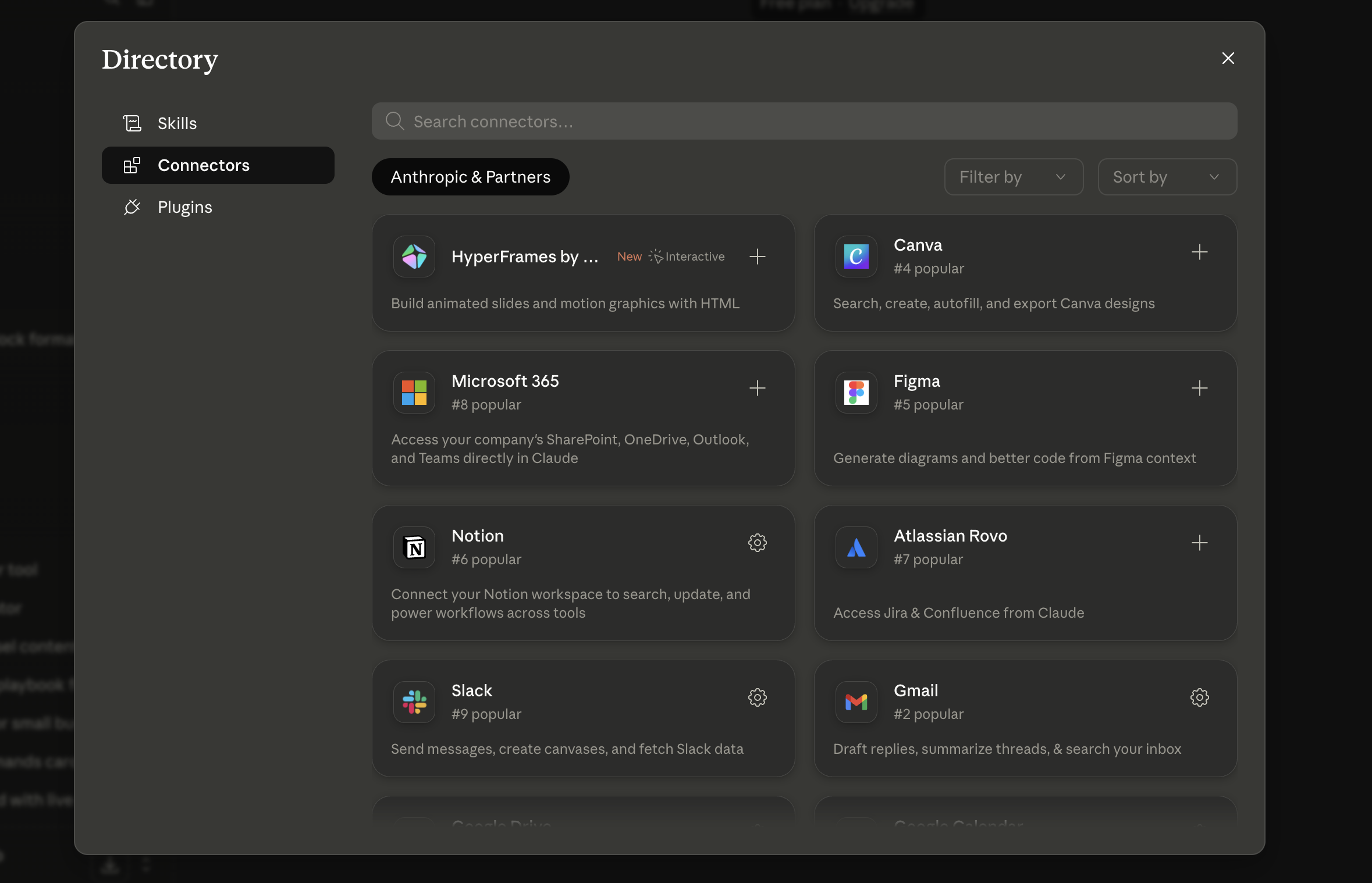
The Claude Connectors Directory shows pre-configured integrations like Notion, Slack, Gmail, and more.
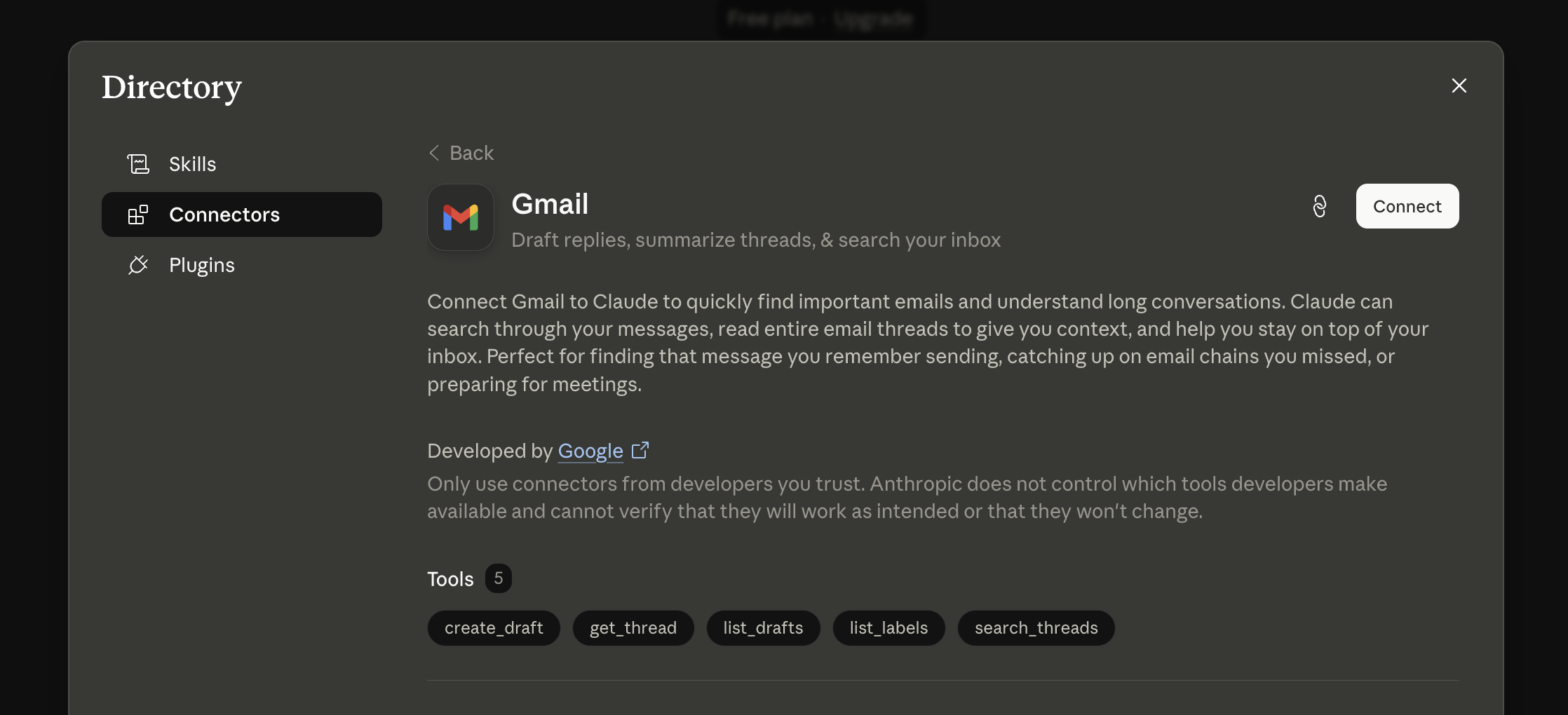
Each connector page lists the specific actions Claude can perform, such as drafting emails and searching threads.
Method 2: Claude Desktop Extensions (.mcpb)
For tools not listed in the Connectors Directory, or for connecting local files and databases, Claude Desktop supports one-click Desktop Extensions. These are packaged MCP server bundles with the .mcpb file extension.
When you install a Desktop Extension:
- Download the
.mcpbfile from the extension provider - Double-click it, and Claude Desktop opens an install prompt
- Review the permissions and click Install
- The extension runs locally on your machine, never on Anthropic's servers
This is the method to use for connecting local databases, internal tools, or third-party MCP servers not yet listed in the main directory.
If you want to go even deeper and build custom integrations for proprietary systems, read How to Connect Claude AI to Your Apps Using the Claude API. That guide covers building custom connections programmatically.
10 Business App Connections Worth Setting Up First
Once you understand the two methods, here are the ten connections that deliver the most practical value for a small business owner or solopreneur.
1. Gmail and Google Workspace
What Claude can do: Read emails, summarize threads, draft replies, search your inbox by topic, extract action items from long email chains, and cross-reference your Drive files when drafting responses.
Setup: Connect via the Claude Connectors Directory. Authenticate your Google account. Works with Gmail, Google Drive, Google Docs, Google Sheets, and Google Calendar as a bundle through the Google Workspace connector.
Real use case: "Summarize all emails from [client name] in the last 30 days and list every open request." Claude reads the threads and returns a structured summary with action items. What used to take 20 minutes of inbox archaeology takes 30 seconds.
2. Slack
What Claude can do: Search message history across channels, summarize long threads, find conversations about a specific topic, and draft messages for you to send.
Setup: Connect via the Claude Connectors Directory using the Slack OAuth flow. Find Slack in the directory and authenticate your workspace.
Real use case: "What did the team say about the product launch last week in #general and #marketing?" Claude searches both channels and gives you a clean summary instead of you scrolling through hundreds of messages.
3. Notion
What Claude can do: Search your Notion workspace, read pages and databases, create new pages, and update existing content based on your instructions.
Setup: Connect via the Connectors Directory or the official Notion MCP integration. Authenticate your Notion workspace.
Real use case: "Find all meeting notes from Q2 and write a quarterly summary document." Claude reads every meeting note page and generates a structured summary you can review before saving.
4. HubSpot
What Claude can do: Pull contact records, check deal pipeline status, summarize recent activity for a contact, draft follow-up emails based on CRM data, and generate sales reports from live data.
Setup: Connect via the Connectors Directory using HubSpot OAuth. HubSpot is one of the most commonly listed connectors because of its widespread use.
Real use case: "Summarize the last 6 months of activity for [company name] in HubSpot and draft a re-engagement email." Claude reads the CRM record and writes a personalized email based on actual history, not a generic template.
For a broader look at using Claude across your small business stack, How to Set Up Claude for Small Business in Under 30 Minutes covers the full picture alongside MCP.
5. Salesforce
What Claude can do: Query contact and account records, check opportunity stages, pull pipeline reports, summarize deal history, and draft outreach based on CRM context.
Setup: Connect via the Connectors Directory or a compatible MCP connector for Salesforce. Authenticate using your Salesforce credentials.
Real use case: "List all deals in the negotiation stage worth over $10,000 and write a one-sentence status note for each." Claude pulls the live data and formats the list, saving your sales team a manual reporting task.
6. Google Sheets
What Claude can do: Read spreadsheet data, run analysis on tabular data, generate summaries and charts in natural language, write formulas, and update cells based on your instructions.
Setup: Included in the Google Workspace connector. Authenticate once and all Google apps connect together.
Real use case: "Here is my sales data sheet. Identify the top 3 performing products by revenue last quarter and flag any products with declining month-over-month sales." Claude reads the actual data and returns a structured analysis.
7. GitHub
What Claude can do: Search repositories, read code files, review pull requests, summarize issue history, and help you understand unfamiliar codebases.
Setup: Connect via the Connectors Directory or GitHub's official MCP server. Authenticate with your GitHub account.
Real use case for non-developers: "Search my GitHub repositories for any project that mentions [client name] and list all open issues." Even if you do not write code yourself, this lets you track what your developers are working on without needing to log into GitHub manually.
8. Asana
What Claude can do: List tasks, check project status, create new tasks, summarize what is overdue across all your projects, and generate progress reports.
Setup: Connect via the Connectors Directory using Asana OAuth.
Real use case: "What tasks are overdue across all my active projects? Group them by project and flag anything overdue by more than 5 days." Claude gives you a triage list instantly.
9. Zapier
What Claude can do: Trigger Zaps from Claude, pass data from Claude's output into automated workflows, and act as the intelligence layer inside complex multi-tool pipelines.
Setup: Zapier offers an MCP server that exposes your Zaps as callable actions inside Claude. This is one step beyond passive data reading. Claude can actively trigger automations.
Real use case: "A new lead came in from this form submission. Create a HubSpot contact, send a welcome email via Gmail, and add a task in Asana to follow up in 3 days." With Zapier's MCP server, Claude can kick off that entire sequence from one instruction.
10. Linear
What Claude can do: Search issues, check sprint status, create new issues, summarize roadmap progress, and generate engineering updates for non-technical stakeholders.
Setup: Connect via the Connectors Directory using Linear OAuth.
Real use case for founders: "Give me a non-technical summary of what the engineering team shipped this week in Linear." Claude reads the completed issues and writes a plain-language summary you can drop into a team update.
A Practical Workflow Example
Here is what using multiple connectors together looks like in practice.
A client email comes in with a complex request. Without MCP:
- Open Gmail. Read the email.
- Open HubSpot. Check the client's history.
- Open Notion. Find the relevant project notes.
- Open Google Docs. Start drafting a response.
- Copy everything into Claude for help writing.
With MCP: Open Claude. Type: "I just got an email from [client name]. Check their HubSpot history, find the relevant Notion project notes, and help me draft a response."
Claude reads the email, pulls the CRM history, finds the notes, and drafts a reply that references the actual context. You review and send.
That is the shift MCP enables. Claude stops being a place where you paste things and becomes a place where things actually happen.
What You Cannot Do Yet
MCP is still expanding. A few things worth knowing as of 2026:
- Claude cannot take actions unless the connector supports write access. Some connectors are read-only by design. Check the connector's listed permissions before expecting Claude to create or update records.
- Not every app has an official connector. The Claude Connectors Directory is growing, but niche tools may not be listed yet. In that case, look for a third-party MCP server, or use the Zapier connector as a bridge.
- Claude Cowork users have the widest connector access through the Plugins system launched in January 2026. If you are on a free Claude plan, you may have fewer connectors available.
For automated workflows where Claude runs tasks on a schedule using connected tools, read How to Use Claude Routines to Run Autonomous Tasks Automatically. Routines combined with MCP connectors is where this gets genuinely powerful.
Getting the Most Out of Claude's Connections
A few things I have learned from using MCP connections in my own work:
Setting up the connectors takes 15 minutes total for most people. The actual payoff starts when you stop thinking about Claude as a writing tool and start treating it as a command interface for your entire tool stack.
Start with the two apps you open most in a day. Connect those first. Once you see how much smoother the workflow becomes, the rest of the connections will feel obvious.
The thing I personally appreciate most about MCP is that it respects your existing permissions. Claude does not bypass anything. It only sees what you see. That makes it practical to roll out without worrying about security surprises.
Download the Free MCP Setup Guide
If you want a step-by-step reference with connector setup instructions, use cases, and prompts for all 10 tools covered here, grab the Claude MCP Business App Setup Guide below.
It covers each connector with:
- Setup steps specific to that app
- The exact prompts to get useful output
- Common errors and how to fix them
Comment "MCP" below and I'll send you the free setup guide.