Most cloud servers require you to know Linux commands, manage config files, and debug terminal errors. Even the ones marketed as "easy" usually have a learning curve that stops non-technical people cold.
Zo Computer is different. It is a personal cloud server you control entirely through conversation. You type what you want, and your Zo handles it. No terminal setup. No SSH keys. No configuration files. Just a chat interface and a powerful server working in the background.
This guide explains what Zo Computer is in plain English, what you can do with it, and ten things you can try the moment you sign up.
What Is Zo Computer AI?
Zo Computer is a personal cloud computer powered by AI. Think of it as renting a powerful Linux server that comes with an AI assistant built directly in. The AI understands plain English instructions, runs tasks on the server for you, and connects to tools and apps you already use.
The official description captures it well: "An always-on AI computer that does real work for you."

Zo Computer's brand logo with the Pegasus icon, representing an intelligent personal server for everyone.
You access your Zo from anywhere. Through the Zo web app, the Zo desktop application for Mac or Windows, Telegram, email, or SMS. Wherever you are, your Zo is running in the cloud, ready to work.
Zo was created by Rob, the first engineer at Substack, and Ben, an early engineer at Stripe. They launched it in June 2025. It is backed by the Collisons, the founders of Stripe, and Guillermo Rauch, the founder of Vercel. The team's vision is to give everyone their own piece of cloud infrastructure, as simple as texting a friend.
How Is Zo Computer Different from Regular AI?
When you use Claude AI or ChatGPT, the AI responds to questions and generates text. That is the whole loop. You close the window and the conversation ends.
Zo Computer flips this. Your Zo runs 24/7 on a real server. It can hold files, host websites, run scheduled tasks, send you messages, and take actions on your behalf even while you sleep. It has persistent memory, so it remembers your projects, preferences, and context across every session.
The difference is the same as the difference between hiring a consultant who answers questions and hiring an employee who actually does the work.
One way I think about it: when I learned about Zo, I realized I was looking at something closer to having my own IT department than a chatbot. And I say that as someone who uses Claude every day.
What Can You Do with Zo Computer?
Here is what a standard Zo setup can do out of the box:
Publish websites. Zo comes with Zo Space, a hosted personal website at {your-handle}.zo.space. You can build and publish web pages and APIs just by describing what you want. No code required.
Run automations. Zo's Automations feature lets you schedule AI tasks on a timer. Daily briefings, weekly reports, recurring reminders, automatic content drafts. You describe the task once and it runs on whatever schedule you set. I walk through the most useful automation setups in detail in my guide on How to Set Up Automations on Zo Computer.
Connect to your apps. Zo integrates with Gmail, Google Calendar, Google Drive, Notion, Slack, Dropbox, Spotify, Airtable, and many more. You authenticate once and Zo can read, write, and act on data across your connected tools.
Store and manage files. Your Zo has a personal workspace where you can organize files, documents, projects, and assets. The AI can read, edit, move, and create files on your behalf.
Send messages and alerts. Zo can proactively send you emails, SMS messages, and Telegram messages. You can set these up as automated reports, or ask Zo to notify you when a specific condition is met.
Generate media. Zo can generate images, videos, and diagrams directly from a text description. Output goes straight into your workspace.
Host real services. Beyond basic pages, Zo can host full Node.js, Python, or any-language applications as persistent services with public URLs. This is what makes it useful for small businesses. I cover the full business use case in my guide on How to Use Zo Computer to Run Your Small Business.
Getting Started with Zo Computer
Zo is free to start. You sign up at zocomputer.com with no credit card required. The free plan gives you access to a daily usage allowance and a selection of AI models. Your computer does go to sleep on the free plan, but you can wake it any time you log in.
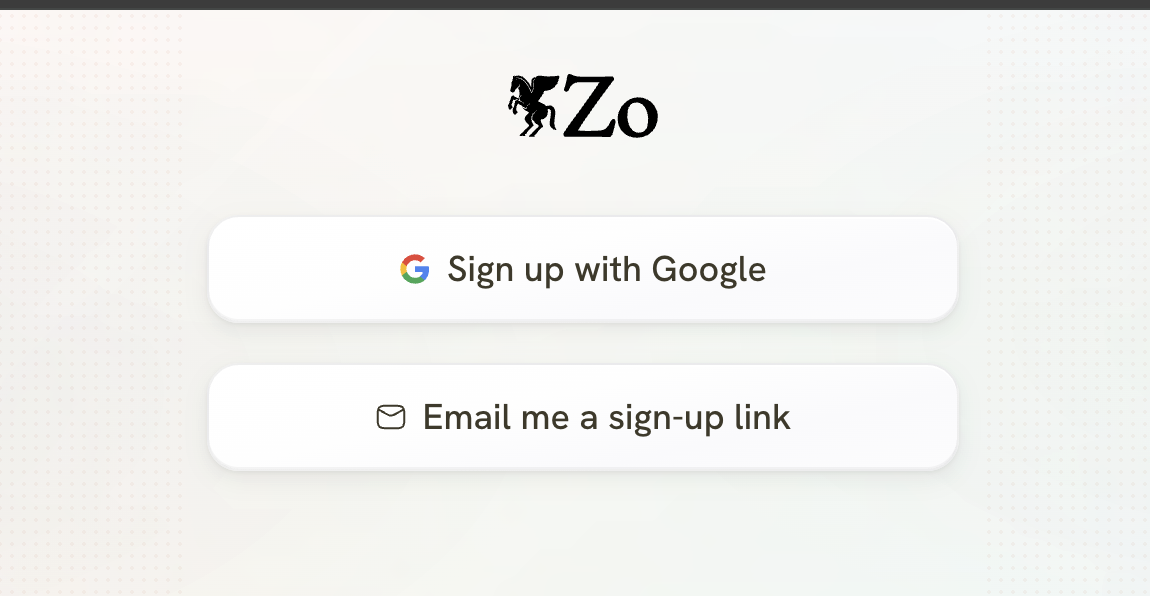
Getting started with Zo takes seconds. Sign up with Google or get a link sent to your email, no credit card needed.
Paid plans (Basic, Pro, Ultra) keep your computer always on, unlock custom domains, and increase your monthly AI credits. You can see everything on the pricing page.
After signing up, your Zo is ready at {your-handle}.zo.computer in the browser or in the Zo desktop app. Your first task is just to chat with it.
What AI Models Does Zo Use?
By default, Zo uses Claude by Anthropic, one of the most capable AI models available. You can also connect your own API keys for other providers including OpenAI, Google Gemini, OpenRouter, Groq, and others from the Settings page.
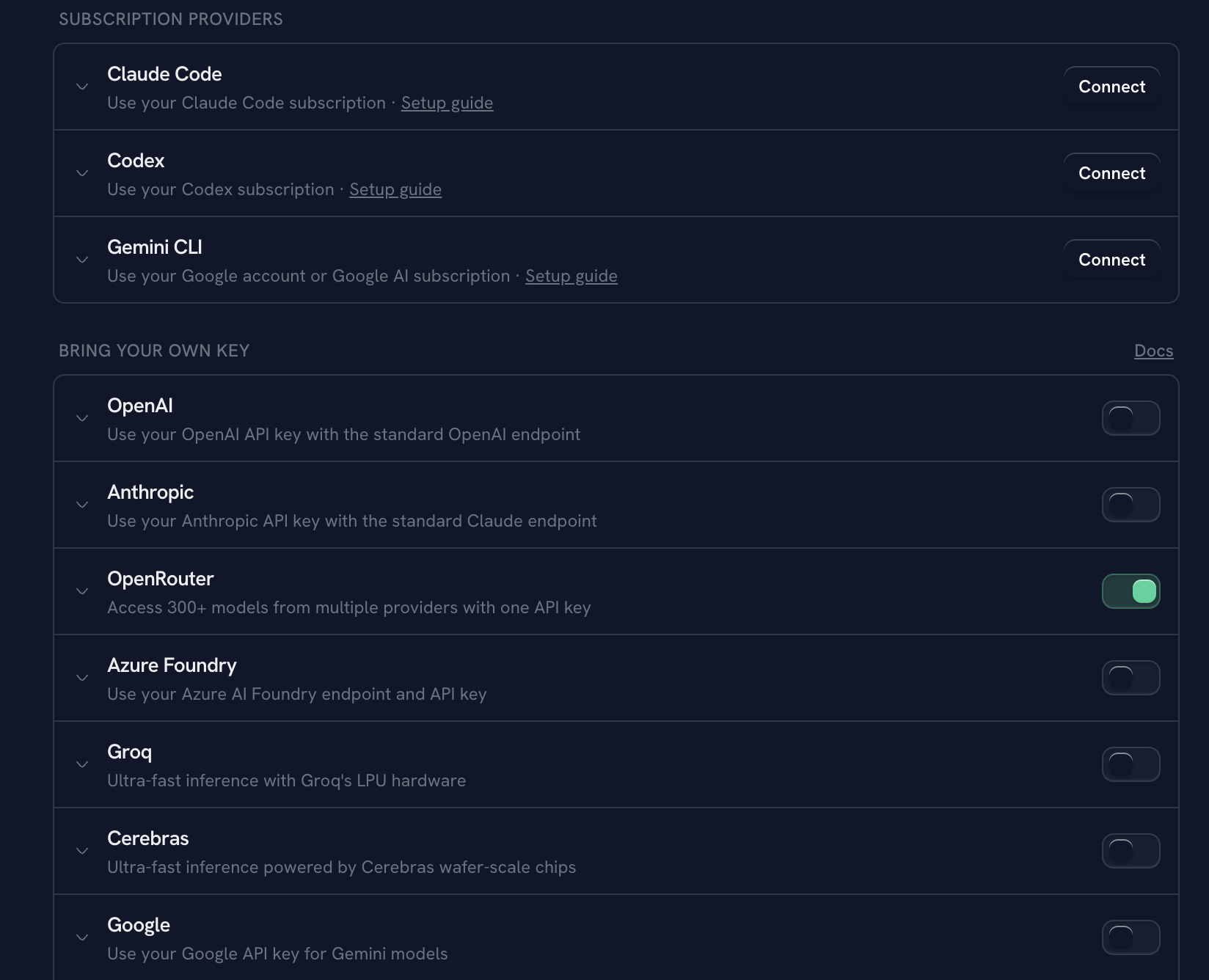
Zo's AI settings page lets you connect subscription providers like Claude Code, or bring your own API keys for OpenAI, Anthropic, OpenRouter, Groq, Cerebras, and Google.
If you are not yet familiar with Claude AI, start with my guide on How to Start Using Claude AI as a Complete Beginner before exploring Zo further. Understanding Claude's strengths will help you write better instructions for your Zo.
10 First Things to Try on Zo Computer
Once you are signed in, here are ten tasks to explore in your first session. None of them require coding.
1. Have your first AI conversation Just type something in the chat. Ask a question, describe a project, or tell Zo what you are working on. This is how you build context so Zo understands you better over time.
2. Ask Zo to analyze a file Upload a document, spreadsheet, or image using the paperclip icon in the chat. Then ask: "What is in this file?" or "Summarize the key points." Zo reads the file and gives you a structured response.
3. Create a web page Type: "Create a simple landing page for my [business type]. Make it clean and professional." Zo will build an HTML page and publish it to your zo.space URL in minutes. No design skills needed.
4. Set up a morning briefing Go to Automations in your Zo app. Create a new automation with a daily schedule (example: every day at 7am). Write a prompt like: "Check my Gmail for unread important emails, summarize the top 3, and send me a Telegram message." Save it. From the next morning, Zo handles it.
5. Connect Gmail Go to Integrations and connect your Gmail account. Once connected, you can ask Zo to search your inbox, draft replies, organize labels, or summarize threads, all through the chat.
6. Generate an image Type: "Generate a professional banner image for a digital marketing business. Dark background, clean typography, blue accent color." Zo generates it and saves it to your workspace.
7. Ask Zo to send you an email Type: "Send me an email at [your email] with a summary of the 5 most useful things I can do with Zo Computer." This tests the email channel and gives you a useful reference to save.
8. Open a website with Zo's browser Type: "Open [any website URL] and summarize what is on the page." Zo launches an internal browser, loads the page, and reads it for you. You can also authenticate into websites this way so Zo can interact with them on your behalf.
9. Create a Skill Go to Skills in your Zo app. Skills are reusable workflow instructions you save once and activate by name. Create a skill called "Daily Content Idea" with a prompt that generates a social media post idea based on a topic you give it. From then on, you just say "Run Daily Content Idea" and it executes.
10. Explore the terminal If you are curious about what is happening under the hood, open the Terminal panel. You can run real shell commands on your Linux server: check disk space, list files, install packages. This is optional for beginners but powerful for those who want full control.
Community and Support
The Zo team is active and accessible. You can:
- Get help at support.zocomputer.com
- Join the Zo Discord community to connect with other users
- Watch tutorials and demos on the Zo YouTube channel
- Follow product updates on X and LinkedIn
- Attend free office hours at lu.ma/zocomputer
The Discord community is especially worth joining early. It is where power users share workflows, tips, and Skill templates.
Grab the Starter Guide
The download below includes a step-by-step walkthrough of 10 beginner Zo Computer tasks, with exact instructions for each one. It is the companion piece to everything covered in this article. Grab it so you have something to follow along with as you explore your Zo for the first time.