
Every time you open Claude and start a new chat, Claude has no memory of who you are. It does not know your business name, your writing style, your audience, or what kind of results you want. So you explain it again. And again. Every single conversation.
Claude Projects fixes that. It is the feature that finally makes Claude feel like a real working assistant who already knows your context, not a stranger you have to brief from scratch every time you open the app.
In this guide, I will show you exactly what Claude Projects is, how to set it up in about 10 minutes, what to put inside it, and five ready-to-use Project structures for different business types. By the end, you will have a Project running and Claude will already know what it needs to produce great work for you.
If you have not used Claude AI before, start with How to Start Using Claude AI as a Complete Beginner first. It covers account setup and your first prompt in under 30 minutes.
The Problem With Regular Claude Chats
When you use Claude in a regular chat, every conversation starts completely blank. Claude has no memory of what you discussed yesterday, last week, or five minutes ago in a different tab.
This creates a frustrating pattern for anyone using Claude for ongoing work. You paste in your brand guidelines. You explain your audience. You describe your tone. You list your constraints. And as soon as you close that tab and open a new one, you do it all over again.
For one-off questions, this is fine. But if you use Claude for writing, marketing, client work, or business operations, this constant re-explaining is a real time drain. And it introduces inconsistency, because you are relying on yourself to remember everything to tell Claude every single time.
Claude Projects is the solution to this exact problem.
What Are Claude Projects?
Claude Projects is a feature on claude.ai that lets you create dedicated AI workspaces organized around specific areas of your work. Each Project is a container with two things inside it:
Custom instructions: Rules and context you write once. Claude follows these in every conversation inside that Project automatically.
Project knowledge: Files and documents you upload. Claude can reference these at any time when responding to you.
When you start a chat inside a Project, Claude reads your instructions and your uploaded files before it responds. You do not have to explain anything. Claude already knows your business, your style, and your preferences before you type a single word.
This is a completely different experience from regular Claude chats. Projects give Claude a persistent context that never resets between sessions.
What Claude Projects Can Remember for You
Projects give Claude two types of persistent context.
Custom instructions are rules you write directly into the Project. This is where you tell Claude:
- Who you are and what your business does
- Your preferred writing tone and style
- Who your audience is
- What formats or structures you always want
- What Claude should never do when working with you
Project knowledge is the set of files you upload. You can add documents Claude should always have access to:
- Brand guidelines or tone-of-voice documents
- Previous work samples Claude can match
- Your product or service descriptions
- FAQs your business regularly answers
- Client briefs or project overviews
Once you add these, Claude can reference them at any time without you pasting them into every chat. If you upload your brand guide, Claude can follow your brand voice in every response. If you upload a list of your services, Claude can describe them accurately whenever you ask.
Who Can Use Claude Projects?
Projects are available on Claude's Pro and Max plans. They are not included in the free plan.
You can see the full breakdown of what each plan includes at claude.com/pricing. If you use Claude more than a few times a week for work, the Pro plan is genuinely worth it. The Projects feature alone removes enough friction to justify the cost.
How to Create Your First Claude Project (Step by Step)
Creating a Project takes about 10 minutes. Here is the exact process.
Step 1: Open Projects
Go to claude.ai/projects, or click "Projects" in the left sidebar when you are logged in to claude.ai. Then click "New Project."
Step 2: Name your Project
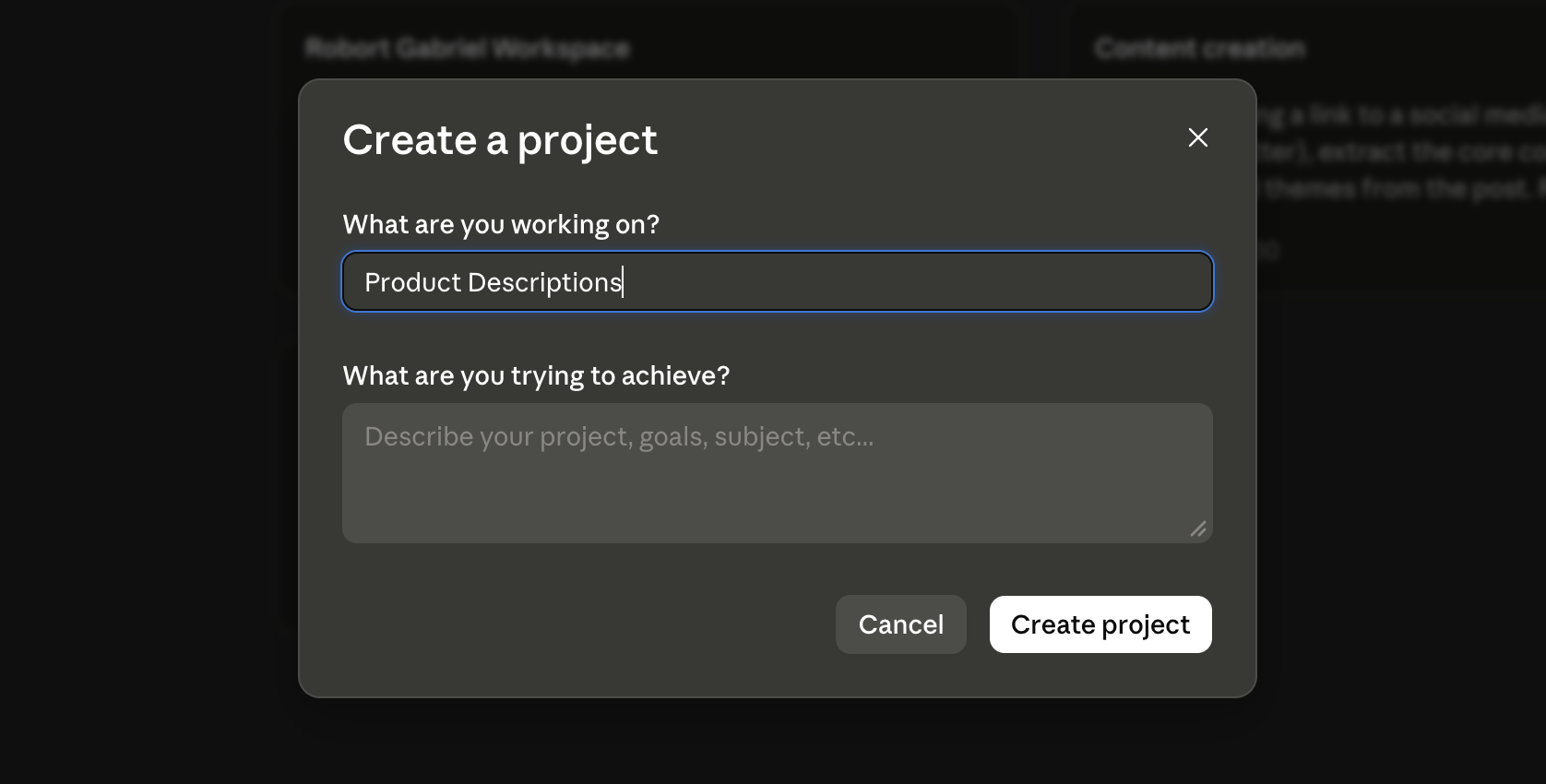
Give it a specific, descriptive name. Use something like "Client Email Writing," "Instagram Captions," or "Product Descriptions." The name helps you stay organized when you eventually have multiple Projects running.
Claude will prompt you with two questions: what you are working on, and what you are trying to achieve. Fill these in to help Claude understand the purpose of the Project from the start.
Step 3: Add your custom instructions
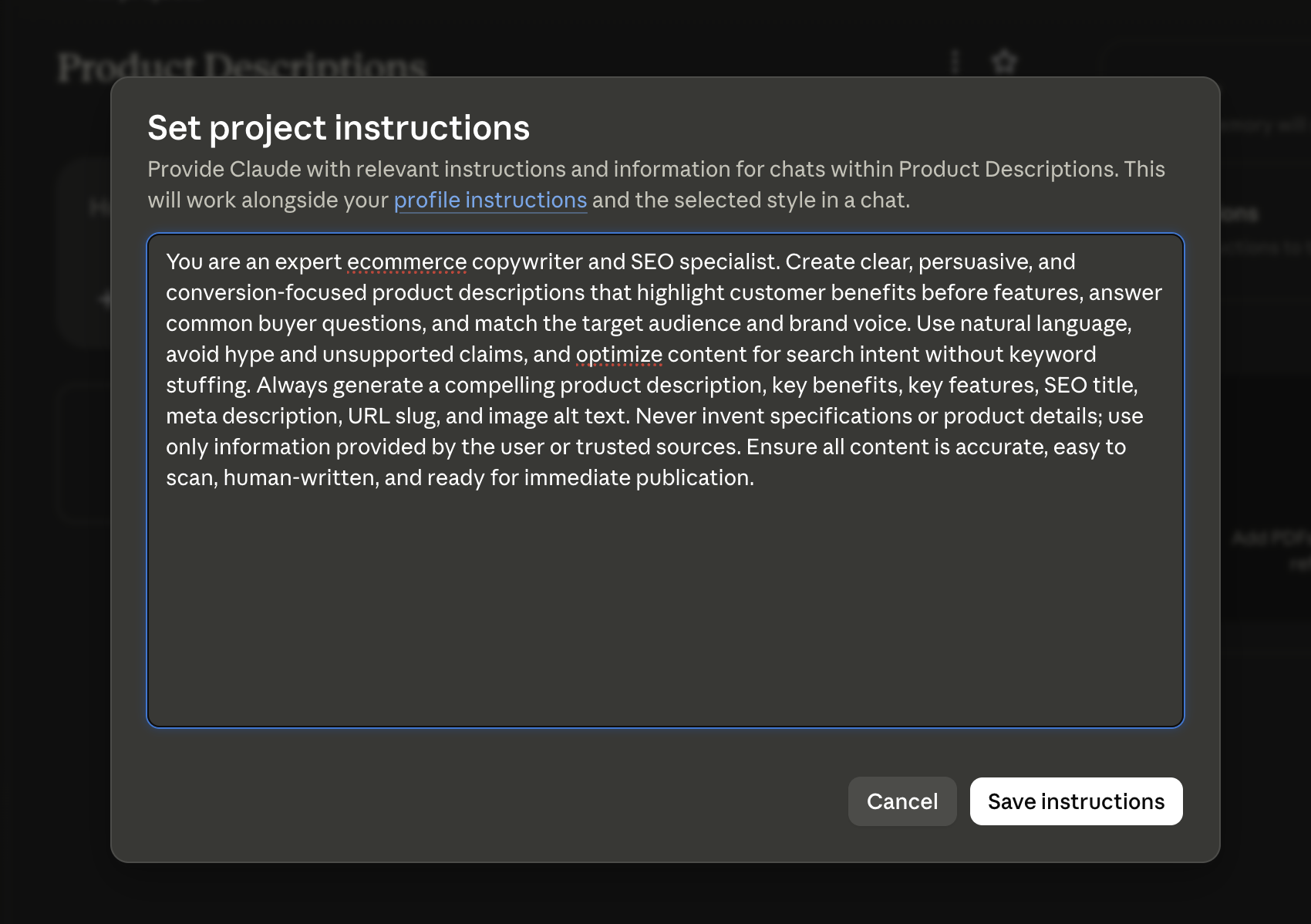
Inside the Project, look for the instructions field. Click to edit it and write your instructions in plain English. I cover exactly what to write in the next section.
This is where Claude really starts to feel personalized. You are essentially telling Claude who you are, what you do, and how you want it to behave every time you open a chat in this Project.
Step 4: Upload files to Project knowledge
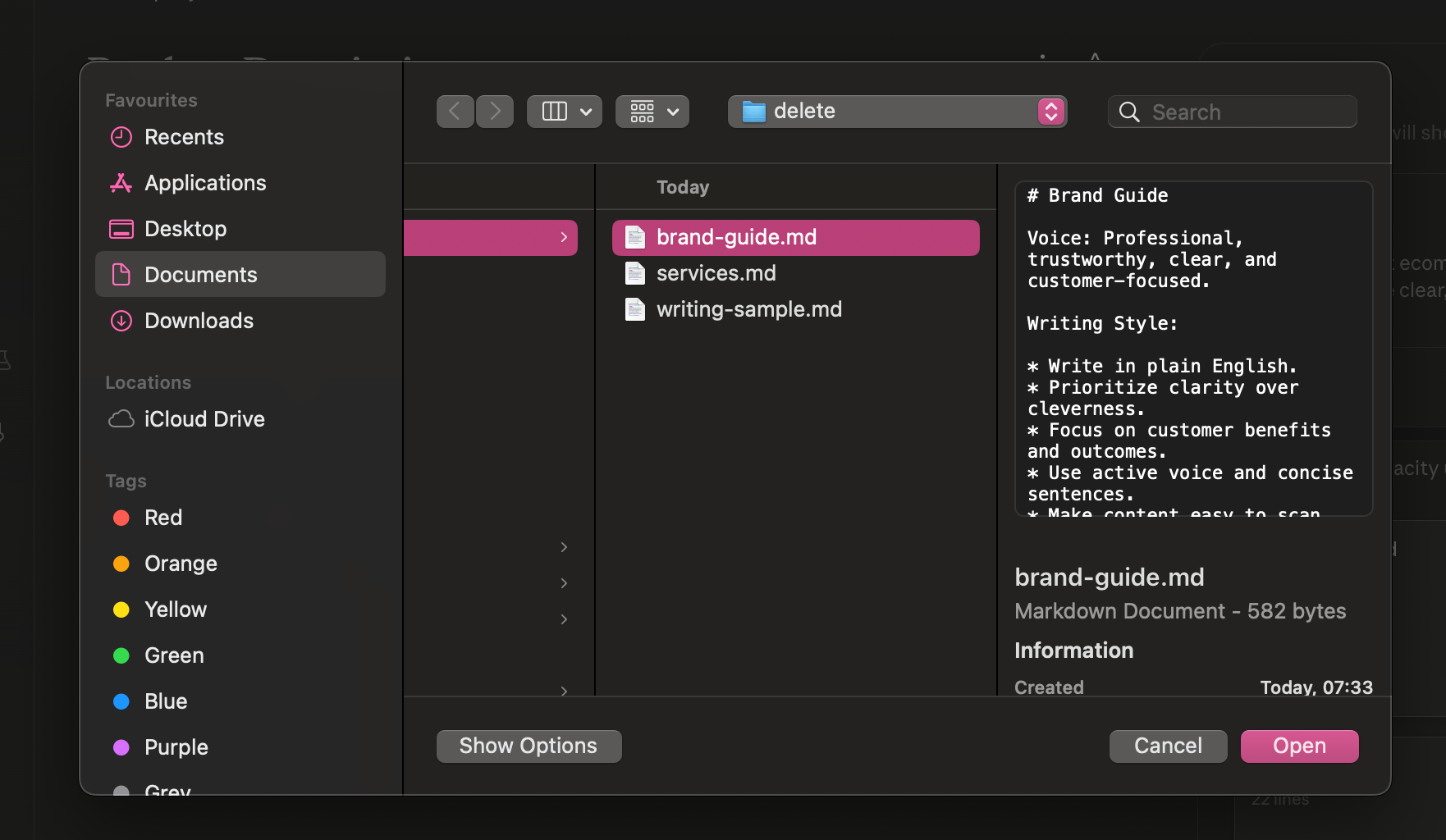
Add any relevant documents. If you have a brand guide, a list of your services, or samples of your best writing, upload those here. Claude will reference them in every conversation.
You can upload multiple files at once. Common files to start with: a brand voice document, a list of your products or services, and a writing sample that represents your style.
Step 5: Start your first Project chat
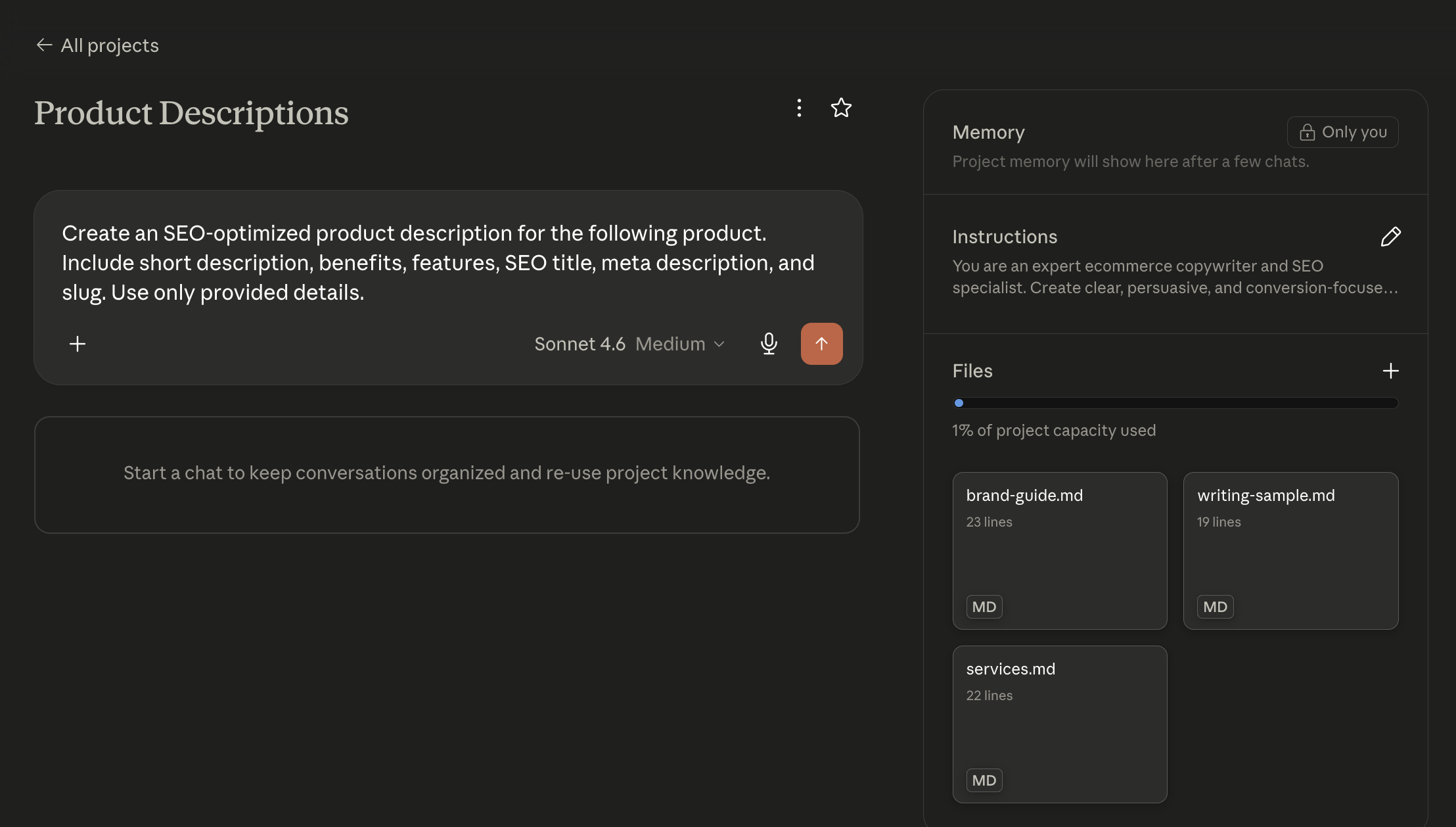
Click "New Chat" inside the Project. Claude will automatically apply your instructions and have access to your uploaded files. You can start working immediately.
Once your Project is set up, you will see your instructions on the right side panel and all your uploaded files listed below them. This is your permanent workspace. Every chat you start here carries all of this context automatically.
The Anthropic support page for Claude Projects has updated screenshots if you need a visual walkthrough of the interface.
How to Write Custom Instructions That Actually Work
The quality of your custom instructions determines how well your Project performs. Here is a five-part structure that covers everything Claude needs.
Part 1: Who you are and what you do
Start with your name, your role, and your business. Example: "I am a freelance copywriter. I write marketing content for B2B SaaS companies. My clients are marketing managers at startups with 10 to 100 employees."
Part 2: Your tone and style
Be specific here. "Write in a conversational tone" is too vague. "Write in a direct, friendly tone. Use short sentences. Avoid corporate buzzwords. Explain things the way you would to a smart friend who is not an expert" is much more useful.
Part 3: Your defaults
Tell Claude what format, length, and structure you prefer. Example: "Always end emails with a clear call to action. Keep email bodies under 150 words. Use bullet points for lists of three or more items."
Part 4: Your constraints
Tell Claude what to avoid. Example: "Do not use jargon. Do not use em dashes. Do not use passive voice. Do not start responses with phrases like 'Certainly' or 'Of course.'"
Part 5: What this Project is for
If the Project is for a specific purpose, say so clearly at the end. "This Project is for writing Instagram captions for my personal brand account. Posts should feel personal and educational, not promotional."
When I wrote my first set of instructions using this structure, Claude's outputs changed immediately. The responses stopped feeling generic and started matching my actual voice and needs.
5 Claude Project Setups for Different Business Types
Here are five ready-to-use Project structures. Adapt them to your situation by filling in the details in brackets.
1. Content Creator or Social Media Manager
Project name: Social Media Content
Custom instructions to write: "I am [Your Name], a [content creator, educator, influencer] focused on [your niche]. My audience is [describe your followers]. Write in my personal voice: direct, friendly, and educational. Avoid jargon. Short paragraphs only. Every post should include one clear, actionable takeaway. For captions: keep the body under 150 words. Hashtags go on the last line only, maximum 4, all lowercase. Never use em dashes."
Files to upload: A sample of your 10 best posts, your bio, a description of your content topics.
2. Real Estate Agent
Project name: Real Estate Writing
Custom instructions to write: "I am [Your Name], a real estate agent in [your location]. Write property listings that highlight lifestyle and emotional benefits, not just features and square footage. Emails to clients should be warm, professional, and easy to understand. Avoid real estate jargon that buyers would not recognize. Keep listing descriptions between 150 and 200 words. Always end buyer emails with a clear next step."
Files to upload: Sample listings you are proud of, your agent bio, a list of neighborhoods you work in.
3. Freelancer or Consultant
Project name: Client Proposals and Emails
Custom instructions to write: "I am [Your Name], a freelance [your specialty]. My clients are [describe them]. When writing proposals, lead with the client's problem, then describe my approach, then list the deliverables. Keep proposals under 500 words unless I specify otherwise. Emails should be direct, professional, and short. No filler. My tone is confident but not aggressive. I want clients to trust me, not feel sold to."
Files to upload: A past proposal you are happy with, three to five client emails that worked well, your service descriptions.
4. Small Business Owner
Project name: Business Operations
Custom instructions to write: "I run [Business Name], a [describe your business]. My customers are [describe them]. Write customer-facing content in a friendly, helpful tone. Product descriptions should be specific and benefit-focused, not full of generic marketing language. Keep internal documents clear and concise. Do not include pricing in templates unless I provide the exact figure."
Files to upload: Your product or service list, your customer FAQ, example emails or messages you have sent before.
For a deeper guide on setting up Claude across your entire business workflow, read How to Set Up Claude for Small Business in Under 30 Minutes.
5. Coach or Course Creator
Project name: Course and Program Content
Custom instructions to write: "I am [Your Name], a [your niche] coach. I help [your clients] to [describe the result you create]. Write in first person. Use real examples and stories where possible. Content should inspire readers to take one specific action, not just give them more information. Keep lessons focused on one idea at a time. Avoid coaching jargon. Write the way a trusted, experienced friend would explain something."
Files to upload: Your coaching framework, program outline, examples of your best lessons or emails.
Tips to Get More From Your Claude Projects
Create separate Projects for separate purposes. Do not try to squeeze everything into one Project. A Project for marketing content and a separate Project for client delivery will each perform better than one bloated Project trying to handle everything at once.
Treat your instructions as a living document. The first version you write is rarely the final version. Edit your instructions as you notice gaps or inconsistencies in Claude's responses. Projects improve over time as you refine them.
Upload files whenever new reference material is ready. If you publish a new style guide, finish a strong piece of writing, or create a detailed service description, add it to your Project knowledge.
Default to Project chats for all ongoing work. Once you have a Project set up for a topic, start every related chat inside that Project rather than in the regular chat window. This keeps all related conversations together and ensures Claude always has your context.
Use Claude Artifacts alongside Projects. When you work inside a Project, Claude can output polished documents, tables, code, and structured layouts in the Artifacts panel. These are separate from the chat and can be downloaded or edited. Learn more in How to Use Claude Artifacts to Build Documents, Code, and Charts.
Your Next Step
Claude Projects turns Claude from a tool you use occasionally into a proper working assistant who already knows your business, your preferences, and your standards before you type a single word.
Set up one Project today. Pick the template from the five setups above that is closest to your situation. Adapt the custom instructions to your specific details. Upload one or two reference files if you have them. Then start a chat inside the Project and see the difference.
If you want a ready-to-use checklist and five fill-in-the-blank custom instruction templates you can copy directly, download the free Claude Projects Setup Guide using the link below. It includes every template from this article formatted for easy use.